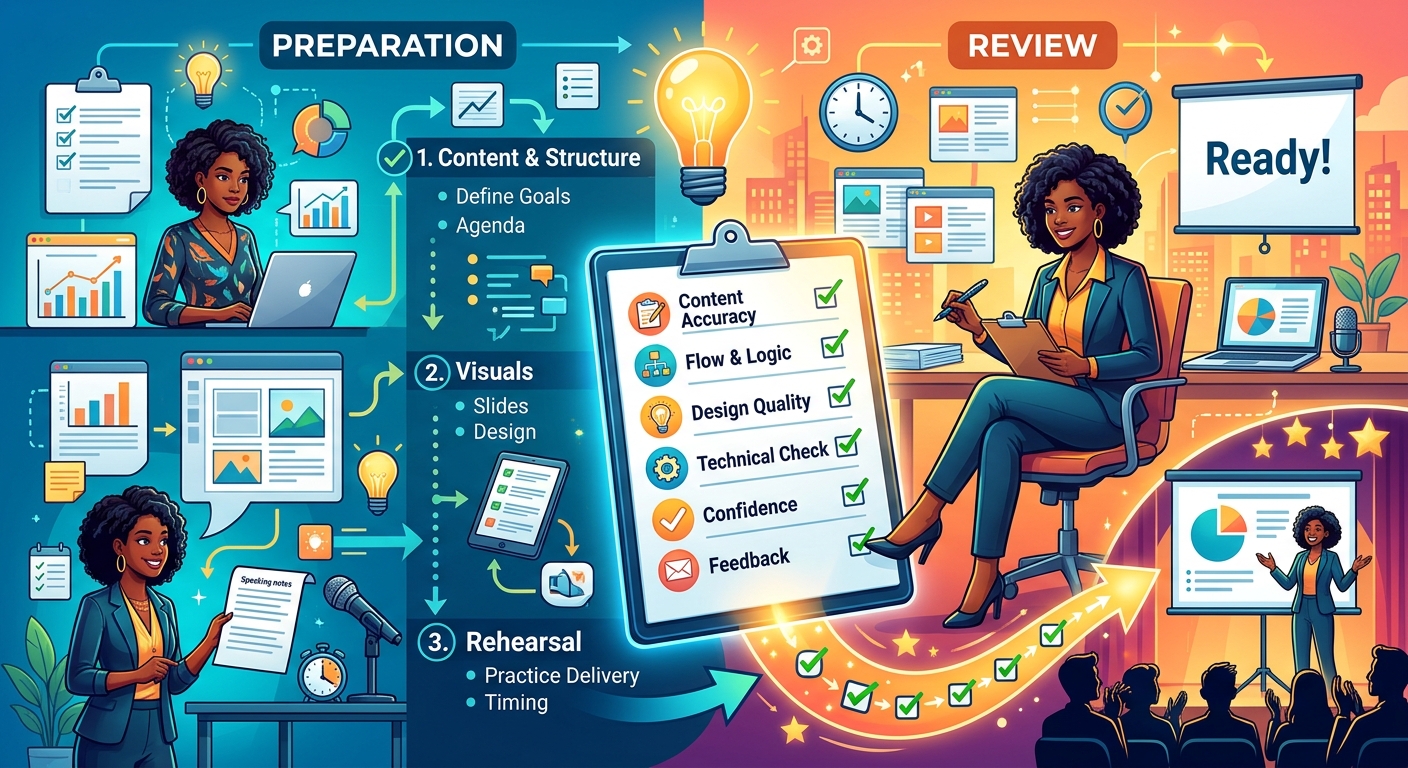
Your slides look ready. Then you open them on another computer, and a heading wraps onto three lines. A chart looks blurry. The attachment is too large to send. These small problems can steal your attention just before you speak. A presentation preparation and review checklist helps you catch them while there is still time to make a calm, simple fix.
The aim is to prepare three things: a clear message, a reliable presentation file, and a readable copy for sharing. This guide walks through each stage, with extra care around PDF conversion, privacy, and checking the files your audience will actually receive.
Your Readiness Snapshot
- Confirm your audience, purpose, and speaking time before polishing slides.
- Keep an editable original and create a separate PDF for sharing.
- Check private information before uploading or distributing files.
- Review every page after conversion, compression, or editing.
- Test your final files on another device and keep an offline copy.
Start With the Decision Your Audience Needs to Make
Before adjusting colors or moving pictures, write one sentence that explains your purpose. A student might need to explain a research finding. A shop owner might want approval for a new supplier. An office worker might need colleagues to agree on a deadline.
Use that sentence to review every slide. Does the content help your audience understand the subject or take the next step? If a slide has no clear job, remove it or move it into supporting material.
Check the speaking time, too. Read your opening aloud and explain a few slides at your normal pace. Leave space for questions and pauses. A presentation that only fits when you rush needs fewer points.
Give Each Slide a Clear Job
A useful slide title tells readers what they should learn. “Delivery Times Fell in September” gives more direction than “Results.” Keep supporting text short enough to scan while you speak.
Check every name, date, total, and source against the original material. For charts, confirm that labels and units are visible. A percentage without context can confuse people even when the number itself is correct.
Choose Your Working File and Sharing Copy
Your editable presentation and your audience handout serve different purposes. Keep the original file so you can change wording, update charts, and reuse slides later. Create a separate sharing copy once the content is approved.
A free, browser-based online PPT tool fits naturally into preparation when you need a place to work on a presentation without installing software. Before starting, check which file formats and download options are available for your task. Test one sample slide before committing a full deck to any unfamiliar workflow.
PDF is useful when recipients mainly need to read or print your slides. Official guidance on PDF export explains that saving a presentation this way fixes its formatting and layout. Still, inspect the exported file. A stable format can preserve an error as faithfully as a correct slide.
A PDF also needs to make sense as static pages. An animated sequence may lose its meaning when movement disappears. Give readers enough labels and explanation to follow the point without hearing your talk.
Check Privacy Before Using Online Tools
Pause before uploading a presentation to any online service. Look for customer details, student records, internal prices, unpublished figures, and private screenshots. Check speaker notes, comments, and hidden slides as part of this review.
A file can contain more information than you see during playback. A screenshot may show an email address in a corner. Notes may include a colleague’s feedback. A hidden slide may hold an earlier budget.
Use only services that your school or workplace permits for that material. Read the service’s privacy and file-handling information. Free access and no signup do not establish how uploads are stored or deleted.
For confidential content, use an approved workflow. If you need to remove sensitive information, work from a separate sharing copy. Placing a shape over private text may leave the underlying content recoverable. Use a suitable redaction method when permanent removal is required, then check the result.
Follow a Repeatable Preparation and Export Routine
A fixed sequence reduces the chance of sending an old version or missing a conversion problem. Run through these steps after the content review is complete.
- Save the editable original. Use a clear filename with a date or version number. Keep it separate from temporary downloads.
- Prepare the audience copy. Remove material that recipients should not receive. Decide whether they need full slides, selected pages, or a handout with notes.
- Export a PDF. Check the slide range, orientation, and output layout. Confirm whether the export includes hidden slides or speaker notes.
- Open the downloaded file. Review the actual download, rather than relying on a preview inside the presentation editor.
- Make any PDF adjustments. Merge supporting documents, split out a relevant section, rotate pages, or reduce file size as needed.
- Review the adjusted file again. Check page order, readability, links, and file size before attaching or sharing it.
Keep the original export until you approve the final copy. If an adjustment damages image quality or changes the page sequence, you will have a clean version to return to.
Review Every Page After Conversion
Conversion is a checkpoint. Open the PDF at a comfortable reading size and move through every page. Compare any complex slide with its editable original.
Pay particular attention to unusual fonts, equations, diagrams, and charts. Look for missing symbols, clipped text, shifted labels, or blank spaces where an image should appear. Check the first and last pages, too. An incorrect export range can remove your opening or final instruction.
Check Text, Links, and Reading Comfort
Try selecting a sentence and searching for a word in the PDF. These checks can reveal whether text has become a flat image. Image-only pages can make searching and using assistive tools harder.
Test links in the downloaded PDF. A link that worked in the editor may need attention after export. Use descriptive link wording within your slides so recipients understand where it leads.
Read the smallest text on a phone or smaller screen. If chart labels require repeated zooming, simplify the chart or provide a separate detail page. Keep text clearly visible against its background, and avoid relying on color alone to explain categories.
Manage PDF Size Without Sacrificing Readability
Large photographs and screenshots can make a slide PDF awkward to email. Compression may help, but the smallest file is not always the best file. Heavy compression can blur the labels your audience needs.
Keep an uncompressed copy before trying a smaller version. Compare pages that contain detailed charts, screenshots, and fine lines. Zoom in on numbers and check that letters remain distinct.
For everyday PDF work, EditPDF123’s browser-based toolkit fits into this stage. Use the relevant function to compress a sharing copy, merge an appendix, split a deck into sections, or rotate an incorrectly oriented page. Check the downloaded result after each task.
If a compressed file becomes difficult to read, use a lighter setting where available. You can also reduce oversized pictures in the editable presentation and export again. Removing unnecessary pages may save space without affecting the quality of the pages you keep.
Choose Images Only When They Suit the Task
Converting a slide to an image can help when you need a preview or a visual for another document. It is usually less useful as the main handout format because readers may lose searchable text and working links.
If you convert slide images into a PDF, check their order and orientation. Inspect small text carefully. Enlarging a low-resolution image will not restore missing detail.
Run a Final Review Before Sending or Presenting
Review the file from your audience’s position. Open it from the folder, attachment, or shared location they will use. Confirm that you selected the approved version and that access permissions match the intended recipients.
- Content: Names, figures, dates, and the requested next step are correct.
- Pages: The count, sequence, orientation, and visible content match your plan.
- Compatibility: The presentation and PDF open successfully on another device or viewer.
- Privacy: Shared files contain only material approved for the audience.
- Delivery: Attachments fit the sending limit, and shared links work for recipients.
- Backup: An offline copy is available for the session.
For live delivery, test the screen connection and presentation controls if you can. Play any audio or video on the equipment you expect to use. Keep your speaking notes accessible separately, and confirm that the audience display does not expose private notes.
Rehearse with the final file. Practice moving between slides, explaining charts, and reaching your last point within the available time. If you make a content change afterward, export and inspect the sharing copy again.
Keep a Clean Copy for the Next Presentation
Once the session ends, save the editable presentation, approved PDF, and any supporting files in one clearly named folder. Keep the version you delivered separate from later revisions.
Add a brief note about corrections, audience questions, or slides that needed more explanation. These details will help when you prepare the next talk. Remove redundant drafts from your sharing folder so they are harder to send by mistake.
Your checklist has done its job when you can find the right file, open it with confidence, and trust what your audience sees. That leaves more attention for the people in front of you and the message you prepared to share.