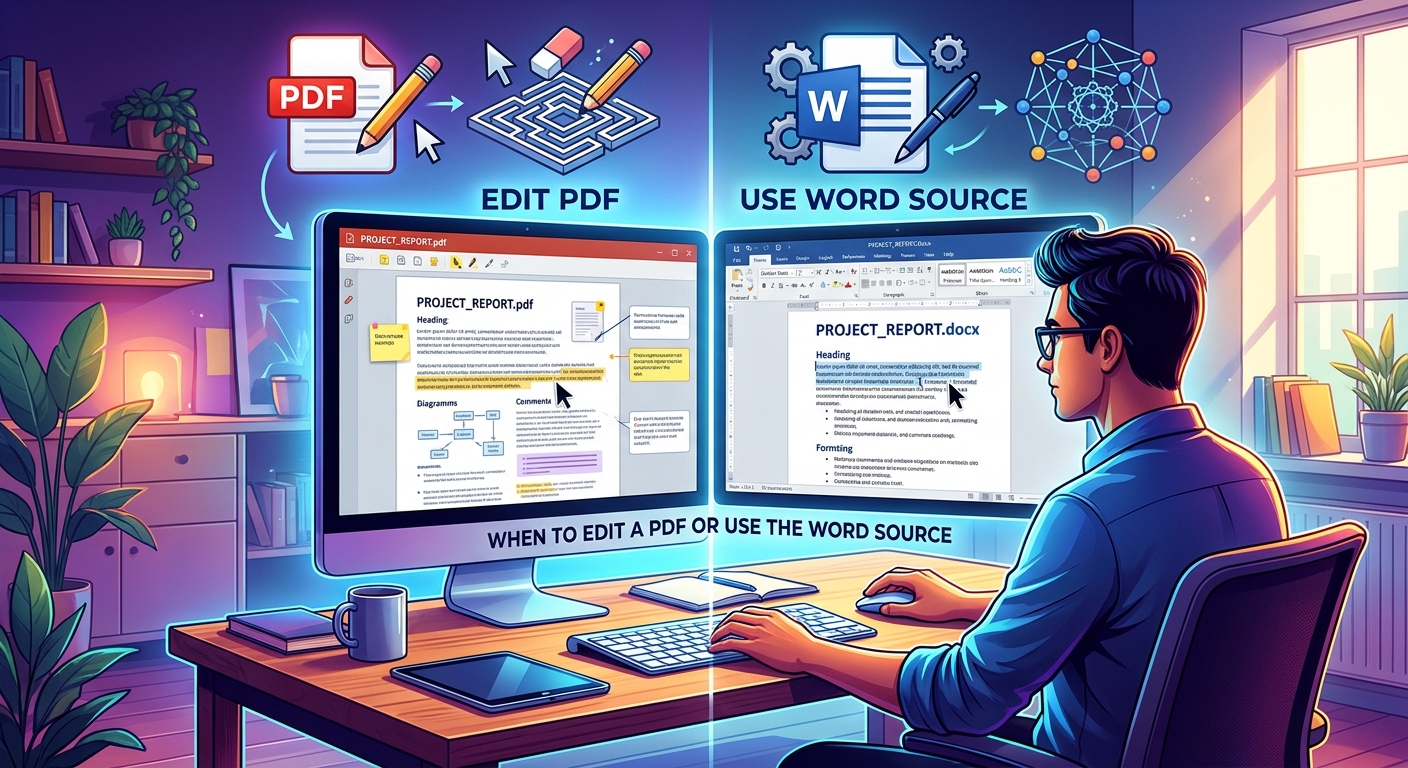
The PDF is ready to send, and then you spot it: yesterday’s date, a missing sentence, or a price that needs changing. Should you fix the PDF directly or open the Word document again? The right choice depends on what needs changing, which files you have, and how much of the layout must stay intact. A small correction can be simple. A larger rewrite needs room for the text to move.
Three Rules Before You Edit
- Edit the PDF when the change is small and the layout should stay fixed.
- Use the Word source when text, structure, or page flow needs changing.
- Keep the original and check every affected page before sharing.
Choose Based on What Needs to Change
A PDF is usually the finished version of a document. Its pages are designed to keep their appearance when opened on different devices. Word documents are built for ongoing writing and revision. Text can move between pages as you add paragraphs, change margins, or adjust headings.
That difference explains most editing decisions. Removing a blank PDF page does not require rebuilding the document. Adding three paragraphs to a report probably does.
Start by describing your change in one sentence. “I need to rotate a page” points toward a PDF tool. “I need to update the introduction and reorganize two sections” points toward Word. This small pause can prevent a lot of unnecessary conversion work.
Which File Fits Your Change?
| Your Task | Best Starting Point | What to Check |
|---|---|---|
| Rotate, remove, or reorder pages | Page order, orientation, and missing content | |
| Correct a short piece of existing text | PDF, if text editing is supported | Font match, spacing, and nearby text |
| Rewrite paragraphs or add sections | Word source | Page breaks, headings, and contents entries |
| Change a document when only a PDF exists | PDF editing or conversion, depending on scope | Text accuracy and reconstructed layout |
| Reduce an attachment’s file size | PDF compression | Image clarity and small text |
Edit the PDF for Small, Contained Changes
Direct PDF editing makes sense when the document is already correct apart from a limited change. You might need to remove an empty page from an application, combine several receipts, or turn a sideways scan upright.
These are page tasks. They do not require an editable Word version. Converting the whole file would add work and could disturb a layout that already looks right.
Text corrections need more care. Some PDF tools can change existing text. Others let you add text boxes, notes, or shapes over the page. Check which kind of editing the tool provides before you begin.
Placing a white rectangle over an old address and typing a replacement may change how the page looks. It does not guarantee that the original address has been removed from the file. For sensitive information, use a proper redaction process and verify the result.
Direct text editing also has limits. A longer replacement might overlap another field or extend beyond the margin. If a small correction starts requiring several layout repairs, return to the Word source if you have it.
Use Word When the Document Needs Room to Move
The Word source is usually the better choice for substantial writing changes. It lets paragraphs flow naturally as the document grows or shrinks. That helps with reports, coursework, proposals, and reusable business templates.
Suppose you need to add a new delivery section to a customer proposal. In Word, you can insert the text, adjust the heading, and review the pages that follow. Trying to squeeze the same section into a finished PDF may create awkward spacing or require extra pages.
Check that the Word file is actually the source of the latest PDF. An older draft may be missing approved wording, updated figures, or corrections made later. Compare dates and content before editing.
Once your changes are complete, export a fresh PDF. Open that exported file separately. A tidy Word document does not guarantee that every page in the exported version looks as expected.
Use a Browser Tool When It Removes a Real Obstacle
Free browser-based tools fit naturally into occasional document work. A student may need to combine assignment pages. An office worker may need a smaller email attachment. A business owner may need to revise a document while using a borrowed computer.
For PDF page tasks, a free toolkit can help with merging, splitting, rotating, or compressing files without a software installation. Choose the tool that handles the actual task. A conversion step is useful only when you need a different file format.
If your task belongs in an editable Word file, an online DOCX tool can fit into that browser-based workflow. Check the available functions and privacy terms before adding your document. Keep a downloaded copy of your work so you can review it outside the browser.
A no-signup workflow can reduce the steps needed for an occasional job. It does not replace checking whether the service suits your document, especially if the file contains private information.
Convert a PDF Only When You Need Editable Content
If the Word source is missing, conversion may help you recover editable text. Treat the result as a working draft that needs checking.
A PDF does not always preserve the same editing structure as a Word document. During conversion, a heading may become an ordinary paragraph. Columns may read in the wrong order. Tables may break into separate text blocks, and footnotes may shift.
Simple documents generally need fewer repairs than pages with complex layouts. A plain letter may convert cleanly. A brochure with text over images can require substantial cleanup.
Scanned PDFs add another issue. Their pages may contain pictures of text instead of selectable characters. Optical character recognition, often called OCR, attempts to turn those pictures into text. It can misread letters, numbers, and punctuation.
Check names, totals, dates, and reference numbers against the original scan. A document can look convincing while containing a wrong digit. If you only need a paragraph, copying and checking that passage may take less effort than converting the entire file.
Check Privacy Before Uploading Any Document
Before using an online service, look at what the document contains. A public event flyer needs a different level of care from a payroll file or identity document.
Read the service’s explanation of file handling. Check whether processing happens on your device or involves uploading the file, how long files are retained, and what deletion options exist. Do not assume that free access or no registration means files stay on your computer.
For workplace documents, follow your organization’s approved process. If you cannot establish whether a service is suitable for confidential material, use an approved local application or ask the person responsible for document handling.
Also check comments, tracked changes, and document properties before sharing an editable file. The visible page may contain less information than the file itself.
Preserve the Original Before Making Changes
Keep an untouched copy of the starting file. Use clear names that distinguish the source, working version, and final export. A date or version number helps when several people are involved.
Avoid repeatedly converting between PDF and Word. Each conversion can introduce changes that need another review. Work from the best available source, make the necessary edits, and create the required delivery format.
Take extra care with digitally signed PDFs. Editing can affect signature validation. If a signed document needs a correction, request a revised version through the appropriate signing process.
Preserve any required accessibility features too. A page may look correct while losing useful reading order, headings, or image descriptions during conversion.
Review the Finished File Before You Send It
Open the saved output rather than relying only on the editor’s preview. Review changed pages and the pages immediately after them, since text movement can affect later content.
- Check names, dates, amounts, and every corrected passage.
- Confirm that page order, orientation, and page count make sense.
- Look for clipped text, overlapping objects, and unexpected blank pages.
- Test links and form fields that recipients will need.
- Inspect images and small print after compression.
- Check the final filename, file type, and attachment size.
If the recipient needs to revise the wording, send an editable format they can use. If they need a stable document for reading or printing, a checked PDF is often suitable. When practical, open the final file in a second viewer to catch obvious display differences.
Keep the Source Ready for the Next Revision
Edit the PDF when the job is contained and the finished pages should stay largely as they are. Use Word when the wording, structure, or layout needs broader work. Convert only when the editable source is unavailable and the task justifies the cleanup.
Keep the source beside the approved PDF. That small habit makes the next correction easier. You can update the document where it was built, create a fresh copy for sharing, and spend your time checking the result instead of rebuilding it.