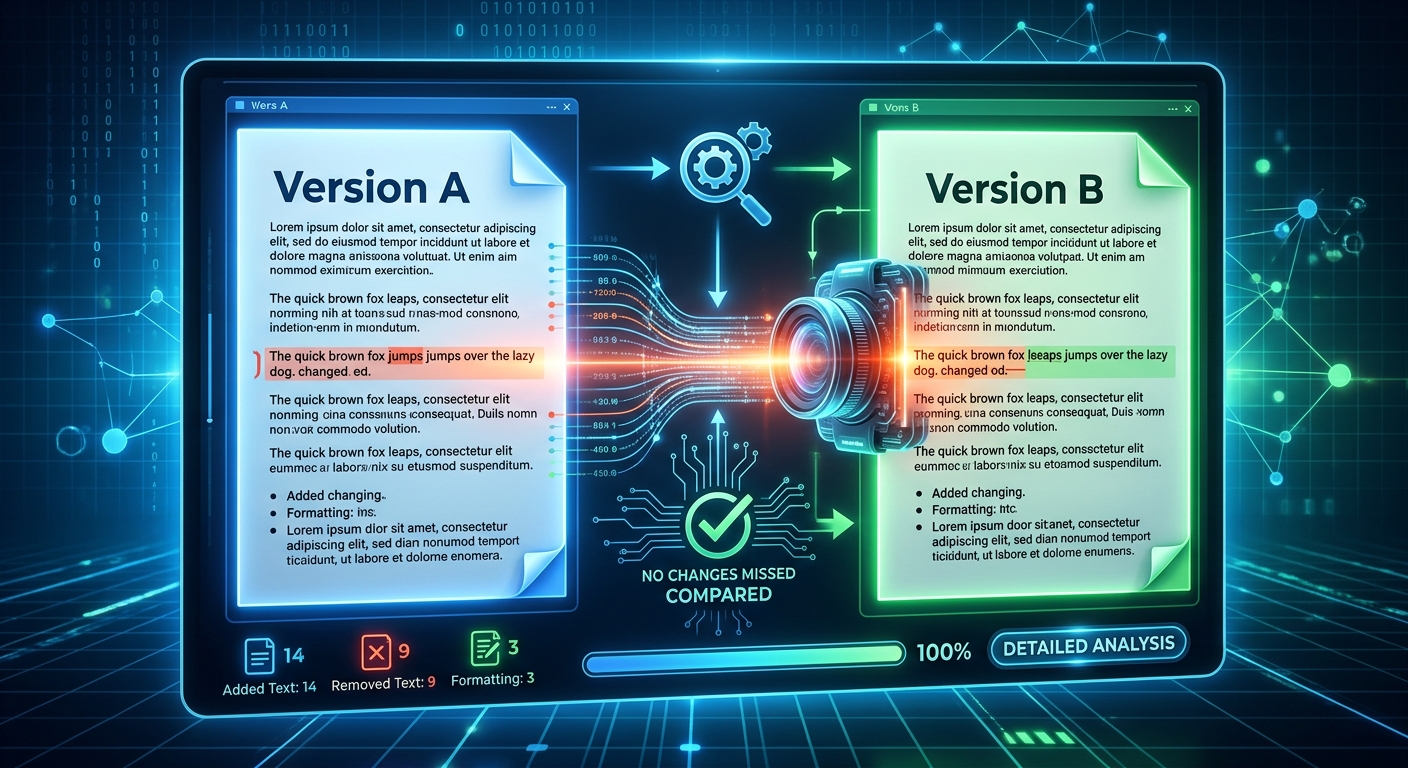
One missing “not” can reverse a sentence. A changed deadline can slip past tired eyes. A deleted heading can leave several pages sitting under the wrong section. Comparing two Word documents takes more than opening both files and scrolling between them. A dependable review checks the words, the formatting, and the document’s structure, then confirms that the approved version still looks right when shared.
You do not need a complicated process. You need the correct drafts, a comparison method that suits your files, and a clear order for checking the results. This workflow helps you catch meaningful changes without spending the afternoon chasing every shifted line break.
A reliable comparison combines automated change detection with a careful visual review.
- Keep untouched copies of both drafts and confirm which version came first.
- Review wording, formatting, and structure in separate passes.
- Check the approved Word file and its exported PDF before sharing either one.
Start With the Right Two Drafts
A comparison cannot tell you that you selected the wrong attachment. Before opening a tool, confirm which file represents the agreed starting point and which contains the proposed edits.
Use descriptive filenames. Names such as “Proposal_Original_2026-10-20.docx” and “Proposal_Revised_2026-10-24.docx” are easier to follow than several copies named “final.” Check the contents as well. A recently downloaded file may still contain an older draft.
Keep both originals untouched. Make working copies for conversion, cleanup, and review. Save the comparison result separately, with a name that identifies the two versions being checked.
Open each document before comparing it. Look for repair messages, missing pages, unreadable characters, or password prompts. If either file fails to open normally, resolve that issue first. A damaged source can produce an incomplete or misleading result.
Decide What Existing Tracked Changes Mean
Tracked changes record edits made while tracking was active. A document comparison examines differences between two saved versions. These serve different purposes.
If either draft already contains tracked changes, decide which document state you intend to compare. You might need the original wording, the current proposed wording, or a version with previously approved edits accepted. Make that decision on working copies. Do not accept every change just to clear the screen.
Record your choice in a brief review note. Otherwise, another editor may repeat the comparison using a different starting state and get a different result.
Choose a Comparison Method That Matches Your Review
If desktop Word is already available, its Compare feature provides a useful starting point. Microsoft’s guidance on document comparison explains how to compare two versions and display their differences in a third document. The comparison settings let you choose which types of changes to examine.
For a browser workflow, you can compare DOCX files without building your review around manually switching between windows. Before relying on any browser tool, check its supported inputs, privacy information, and available output. Do not assume that every comparison service checks headers, comments, formatting, or moved paragraphs.
Side-by-side viewing still has a role. It helps you inspect page layout and judge whether a change makes the document harder to read. Use it alongside change detection, especially for long drafts.
What Each Review Method Helps You Check
| Method | Useful For | Needs Extra Checking |
|---|---|---|
| Word document comparison | Finding insertions, deletions, and supported formatting changes | Change settings, existing revisions, and final page appearance |
| Browser comparison | Reviewing supported files through a browser | Privacy terms, feature coverage, and downloadable results |
| Side-by-side inspection | Checking layout, images, tables, and reading flow | Small wording changes that eyes can overlook |
| Exported PDF review | Checking the appearance of the delivery file | Editable structure and changes hidden during conversion |
Run the Comparison With Deliberate Settings
For desktop Word, the following sequence gives you a repeatable starting point. Menu labels may differ between versions. If your edition lacks the Compare command, choose another method that supports your review needs.
- Open the comparison controls. In desktop Word, go to Review, choose Compare, then select the option for comparing two document versions.
- Assign the files correctly. Place the earlier draft under Original and the later draft under Revised. Reversing them reverses how additions and deletions appear.
- Inspect the available settings. Include formatting and other relevant categories. Check options for tables, headers, footnotes, comments, and moved text where available.
- Choose a useful detail level. Word-level changes are often easier to read. Character-level comparison can help when punctuation, numbers, or individual letters need closer attention.
- Show results in a new document. Keep the comparison separate from both source drafts. Read any warning about existing tracked changes before proceeding.
- Save the result. Record the source filenames and any settings that affect the review. Keep this result available until the final version is approved.
Check one known edit before reviewing everything. If you know a sentence was added, find it in the results. This simple test helps confirm that you selected the intended drafts and understand how the tool presents changes.
Review Text Changes for Meaning First
Begin with changes that affect what readers must understand or do. Read each changed sentence in context. A replacement word may look harmless in isolation but alter the meaning of an entire paragraph.
Give special attention to amounts, dates, names, conditions, and negative wording. “Payment is due within 15 days” carries a different obligation from “Payment is due within 30 days.” A deleted exception can matter more than a newly added paragraph.
Use this focused checklist during your text review:
- Check deadlines, prices, quantities, percentages, and measurement units.
- Read changes to words including “not,” “must,” “may,” “before,” and “after.”
- Verify names, contact details, references, and link destinations.
- Inspect deleted passages for lost conditions, warnings, or supporting evidence.
- Read the sentences before and after each major edit for broken logic or repetition.
Handle moved text carefully. Some tools may display a moved paragraph as a deletion followed by an insertion. Locate both passages and compare their wording before deciding whether content has disappeared.
Avoid accepting all changes in one action. Work through meaningful edits individually. For unresolved points, leave a clear comment explaining what needs checking and who can answer it.
Check Formatting and Structure in Separate Passes
After the wording review, focus on formatting. Check fonts, heading styles, emphasis, paragraph spacing, alignment, margins, and page breaks. A formatting change can affect meaning when bold text marks a warning or indentation separates an exception from a general rule.
Turn on formatting marks when blank spaces or unexpected page breaks cause confusion. Paragraph marks and break markers can help explain why text has moved. Avoid fixing every layout issue with extra spaces or repeated blank paragraphs. Those fixes can fail when someone opens the file on another device.
Trace the Document’s Reading Order
Compare the heading sequence from beginning to end. Where heading styles are used, the Navigation pane can help you spot sections that were removed, renamed, or moved.
Check numbered steps and cross-references after a structural edit. If an instruction says “see section 4,” confirm that section 4 still contains the intended information. Inspect table captions, figure numbers, footnotes, and the contents list too.
Read table headings alongside their data. A shifted column label can make unchanged numbers misleading. Also check headers, footers, text boxes, and image captions. Important content may sit outside the main paragraphs.
Keep Conversion From Distorting the Evidence
Compare the original Word files whenever possible. Converting both drafts to PDF before checking them introduces another step that can change line wrapping, pagination, or font appearance. Plain-text conversion removes formatting and much of the structure you need to inspect.
If one file uses the older DOC format, preserve it and save a separate DOCX working copy. Open the converted copy and inspect its tables, symbols, images, and page layout before using it in the comparison.
If you receive a scanned PDF instead of an editable draft, text recognition may be needed before a text comparison is possible. Treat the recognized text as an imperfect transcription. Check names, numbers, punctuation, and words near page edges against the scan.
Keep a distinction between an editorial change and a conversion effect. A paragraph moving to the next page may result from a missing font rather than a deliberate edit. Confirm the wording and document settings before treating every visual shift as a revision.
Protect Private Drafts Before Using Online Tools
Review what the documents contain before uploading them anywhere. Client details, employee records, unpublished research, and financial information may require an approved local workflow.
Read the service’s information about file processing, retention, deletion, and access. A free service or a lack of registration does not tell you how uploaded content is handled.
If the privacy terms do not answer your needs, use an approved alternative. For a workplace document, follow the organization’s file-handling rules. For testing an unfamiliar tool, use a separate sample containing invented text.
Verify the Approved File and Its PDF Export
Once you resolve the changes, save a clean approved Word file under a new name. Reopen that exact file. Confirm that comments and tracked changes appear only where intended, and update fields or the contents list when needed.
Then export a PDF if that is the delivery format. Choose whether markup should be included. A review copy may need visible revisions, while a customer copy usually needs the approved text without editorial notes.
Open the exported PDF in a separate viewer. Check the first and last pages, changed sections, dense tables, images, links, and page numbers. Look for clipped text, blank pages, missing characters, and headings stranded at the bottom of a page.
If you compress the PDF afterward, inspect the compressed output too. Pay attention to small text inside images and diagrams. Send the file you checked, rather than another similarly named copy from your downloads folder.
Finish With a Draft You Can Account For
A careful comparison leaves you able to explain what changed, what was approved, and which file is ready to share. Keep the original drafts, the comparison result, and the approved version clearly labeled.
The strongest routine is straightforward: confirm the inputs, check detected edits, inspect formatting and structure, then review the delivery file. That gives small but meaningful changes several chances to be caught before they reach your reader.