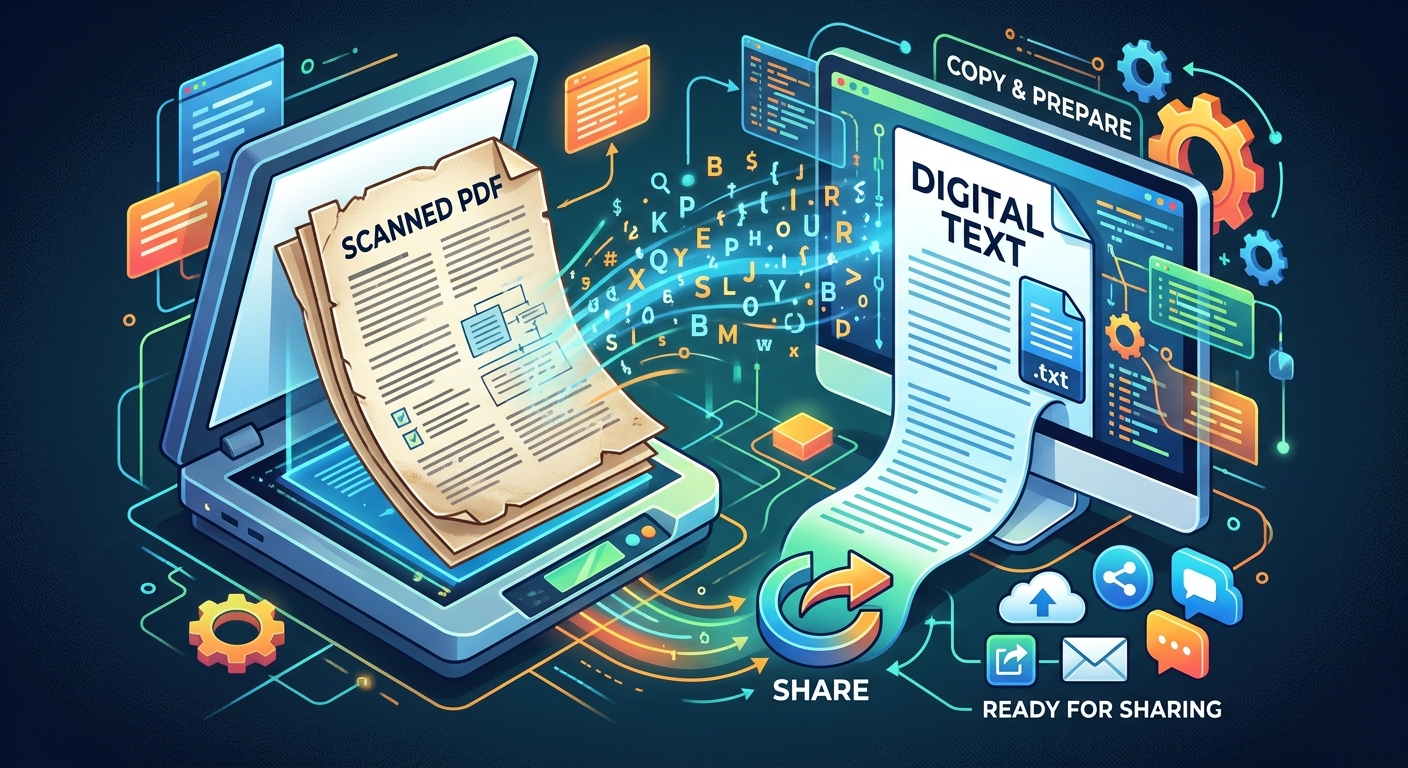
You need one paragraph from a scanned PDF, but dragging your cursor across the page selects nothing. The words are visible, yet your computer treats them as part of a picture. Retyping might work for a few lines. For several pages, text recognition can save you a lot of effort. This guide walks you through extracting the words, fixing mistakes, and building a readable document you can save as a smaller PDF for sharing.
A useful shared PDF starts with accurate, editable text.
- Prepare clear, upright pages before running text recognition.
- Compare the extracted words with the scan, especially names and numbers.
- Build a clean document, export it as a PDF, and check its size before emailing.
1. Check Whether the PDF Already Contains Copyable Text
Open the PDF and try selecting a single word. Copy it, then paste it into a blank document. If readable text appears, you may already have a usable text layer. Some scanned PDFs include recognized text behind the page image, even though they still look like scans.
Try searching for a word you can see on the page. A successful search is another clue that recognition has already been applied. Test more than one page because a file can contain a mixture of searchable pages and image-only pages.
If the pasted text is missing, scrambled, or full of incorrect characters, continue with recognition. OCR means optical character recognition. It converts the shapes of printed letters in an image into editable characters. It gives you a starting draft, which still needs checking.
2. Set Aside the Original and Choose the Pages You Need
Keep an untouched copy of the scan. Use a separate working copy for rotating, splitting, or processing pages. The original gives you something reliable to compare against if a date, sentence, or symbol looks wrong later.
Decide how much text you actually need. Extracting three relevant pages from a long file reduces the amount you must review. Include any page containing notes or definitions needed to understand the selected passage.
Before uploading a file to any online service, check whether it contains information you are allowed to share with that service. For private records or confidential work, use a method approved for those documents. Uploading only the necessary pages can also limit unnecessary exposure.
3. Make the Scanned Pages Easier to Read
Recognition works best when letters are clear and pages face the correct direction. Rotate sideways pages and check that no text is cut off at the edges. If the scan is blurred, taking another scan usually helps more than repeatedly processing the same poor image.
When you can rescan a printed document, around 300 dpi is a reasonable starting point for ordinary text. Small print may need more detail. Avoid compressing the source heavily before recognition because visible artifacts can make letters harder to distinguish.
- Check page alignment: Straighten tilted pages where your scanning tool allows it.
- Check lighting: Remove strong shadows and reflections when photographing pages.
- Check the edges: Keep complete words, page numbers, and relevant footnotes.
- Check readability: Zoom in and confirm that similar letters remain distinct.
4. Decide What Your Finished Document Should Preserve
Think about what the recipient needs. A student sharing study notes may need headings and paragraphs. A colleague copying an invoice may need exact amounts, reference numbers, and labels. These require different levels of layout preservation.
For ordinary reading, a simple document is often easier to correct and share than a close imitation of the scanned page. Keep meaningful structure, including headings and numbered instructions. Remove decorative borders or repeated headers when they add no value to the extracted content.
Choosing a Format for the Extracted Content
| Format | Useful For | What to Check |
|---|---|---|
| Plain text | Quotes, notes, and content you will reformat | Paragraph breaks and reading order |
| Editable document | Reports with headings, lists, and tables | Styles, spacing, and table alignment |
| Searchable scanned PDF | Keeping the original page appearance | Recognition accuracy and image file size |
5. Extract the Text With OCR
If your PDF viewer cannot copy the words, online OCR is an option for extracting text through your browser. Check the service’s current supported formats and upload limits before starting. Available controls can vary, including language selection and output format.
Start with one representative page. A page containing ordinary paragraphs and a few numbers will help you judge whether the result is usable before processing everything.
- Upload the supported file or page image using the service’s file control.
- Select the document’s language if a language setting is available.
- Run recognition and inspect the resulting text.
- Copy or download the output into an editable document.
- Process the remaining pages in manageable batches, keeping their original order.
If the service does not accept your PDF, convert only the required pages into a supported image format. Preserve enough detail to keep small letters readable. Avoid shrinking the page image just to make the upload faster.
6. Compare the Recognized Text With the Scan
Place the scan and your editable document side by side. Read one paragraph at a time, checking that every sentence is present and in the correct order. Pages with multiple columns need extra attention because recognition can mix lines from separate columns.
Do not rely on spellcheck alone. A recognition error can produce a real word that fits poorly in the sentence. “Form” and “from” may both pass a spelling check, even when only one matches the source.
- Names and contact details: Verify spelling, email addresses, and reference codes character by character.
- Numbers and symbols: Check decimal points, currency signs, percentages, dates, and negative values.
- Similar characters: Watch for confusion between O and 0, I and 1, or rn and m.
- Missing content: Look for skipped footnotes, captions, short lines, and words near page edges.
- Tables: Confirm that each value still belongs to the correct row and column.
If a word is unreadable in the scan, flag it in the working document instead of guessing. Obtain a clearer source before sharing text where that uncertainty could change the meaning.
7. Turn the Corrected Text Into a Readable Document
Paste the corrected text into a word processor or browser-based document editor. If the imported formatting looks messy, paste without formatting and apply your own styles. This can remove odd fonts, stray spacing, and unwanted text boxes.
Give the document a clear title. Apply heading styles to section titles, then use a consistent body font and comfortable spacing. Keep the layout simple enough to read on a laptop or phone.
Scanned text often arrives with a paragraph break after every printed line. Join lines that belong to the same paragraph. Remove line-end hyphens only when they split a single word across lines. Keep hyphens that belong in the original wording.
Rebuild meaningful tables using the editor’s table feature. Repeated spaces rarely keep columns aligned after export. Add a brief source note when readers need to know where the extracted text came from.
8. Export the Document and Check the PDF Formatting
Save the editable version first. Then use the editor’s PDF export or download option. A direct export may preserve document structure better than a print-to-PDF workflow, depending on the application and its settings.
Open the exported PDF as a separate file. Check every page for clipped lines, broken tables, blank pages, and headings stranded at the bottom. Confirm that page breaks occur in sensible places.
Try selecting and copying a sentence from the new PDF. Search for a distinctive word as another check. If these fail, review the export settings and make sure the document was not turned into page images. Correct layout problems in the editable file, then export again.
9. Reduce the Final PDF’s Size for Email
Check the exported file’s size before attaching it. A document rebuilt mainly from text will often be much smaller than the original scan. Keeping full-page scan images alongside the text can remove much of that saving.
Delete images that serve no purpose. For images you need, crop unnecessary areas and use a resolution suited to reading on screen. Choose an export setting intended for online sharing if your editor offers one.
If the PDF remains too large, use a PDF compression tool and begin with a moderate setting. Compression can reduce image quality, especially around small lettering and diagrams. Keep your uncompressed export so you can compare results or try a different setting.
Reopen the compressed copy and inspect its smallest text and most detailed images. Check the actual attachment limit in your email service because limits vary. Leave some room below that limit, since email encoding can increase the size of the transmitted attachment.
10. Send a PDF Readers Can Use Immediately
Give the final file a descriptive name, for example, meeting-notes-october-2026.pdf. Open that exact file once more before sending it. Confirm that the pages are complete, the text is searchable, and any editing notes have been resolved.
In your email, briefly explain what the document contains and whether it is a corrected transcription or an excerpt. Keep the original scan and editable document for later corrections. Your recipient gets a readable PDF, and you retain the files needed to update it without repeating the whole process.